You’d think typing =A120% would give you 20% of the number in A1. And you’d be almost right—except Google Sheets is weird about decimals. It treats the percent sign literally, so =A120% works, but =A120 gives you 20 times the value. (Yeah, I’ve been there, buddy.)
The real trick? Think of percentages as decimal fractions. 20% is 0.20, 50% is 0.50, and 100% is 1.0. Once you internalize that, the formulas become second nature. And if you’re like me and hate mental math? Just use the percentage symbol—but only in multiplication, never when adding or subtracting percentages directly.
The Three Percentages You’ll Actually Use
Let’s cut the fluff. Here are the three formula types that cover 90% of real-life spreadsheet needs. First: calculating a percentage of a number. Say you want 15% of 200. Just type =20015% and boom—30. (Yes, it’s that simple. No, I didn’t believe it at first either.)
Second: finding what percentage one number is of another. This is the “I got 45 out of 60 on the test” situation. Use =45/60, then format the cell as a percentage (Format > Number > Percent). Google Sheets will show 75%. Don’t manually multiply by 100—that’s a rookie move.
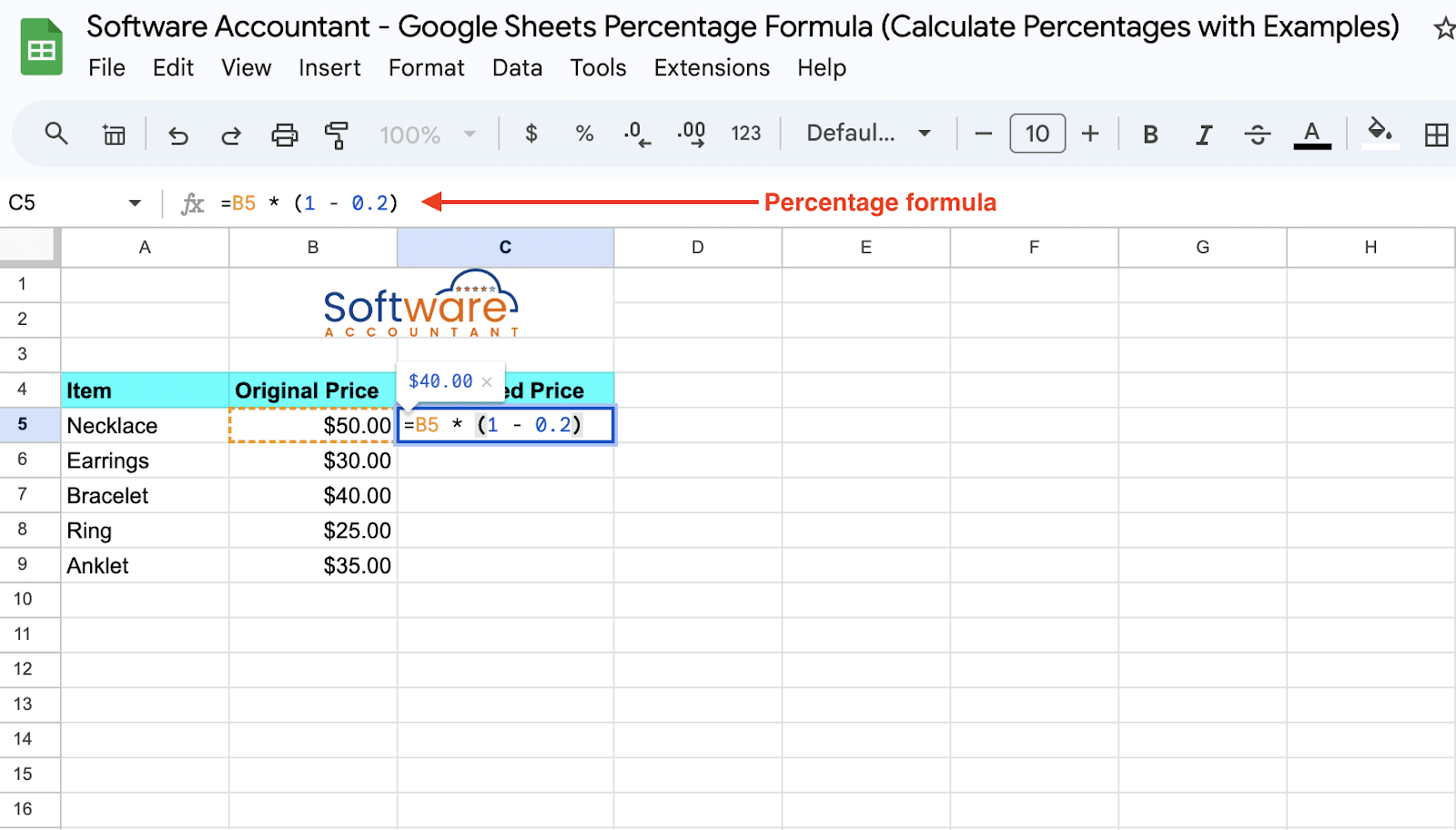
Third: increasing or decreasing a number by a percentage. Need to add 10% to your rent? Type =A1(1+10%). That gives you the original value plus the 10% bump. For a discount? Replace the plus with a minus: =A1(1-15%). It’s like magic, but with less rabbits.

