Let’s say Sarah, a graphic designer, uses this system. On Monday, she starts work at 9:00 AM, takes a 1-hour lunch, and finishes at 5:30 PM. Her row looks like this: Start 9:00, End 17:30, Break 1:00. The formula gives her 7.5 hours (or 7:30 in clock time).
She drags that formula down the whole column for the week. By Friday, her totals row shows 38 hours. Boom. No math, no tears, just pure clarity.
What If You Work Midnight Shifts?
If you work past midnight (like a night-shift nurse or a late-night coder), the simple formula above will break. Fix it by using this: =MOD(End - Start, 1) - Break. The MOD function tells Excel, "Hey, if the hours cross midnight, just wrap around."
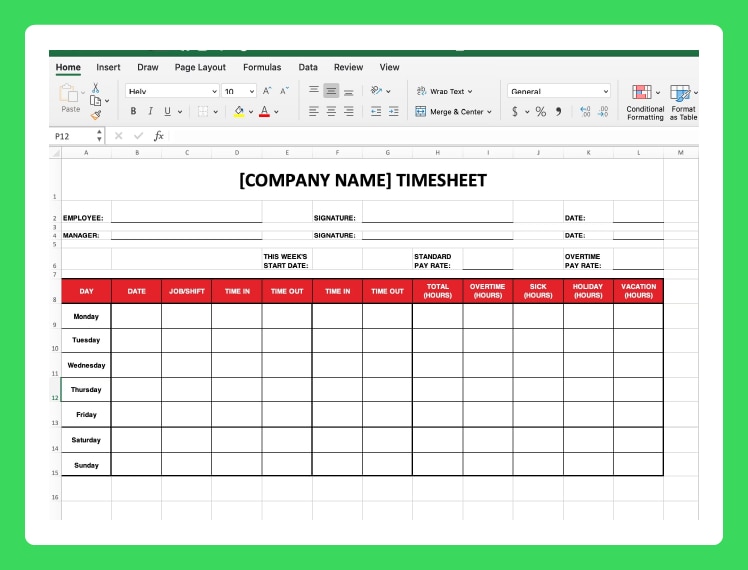 Mastering Timesheet Creation in Excel: A Step-by-Step Guide with
It sounds complex, but just copy-paste: =MOD(C2-B2,1)-D2. Excel handles the rest. You can now track your 11 PM to 2 AM shift without crying.