
Listen, your iPhone 7 has a glorious 2GB of RAM. That is less memory than a cheap toaster from 2017. Every app you don’t delete is basically a tiny gremlin sitting in storage, whispering, “Hey, let’s crash Safari when you try to order pizza.” We’ve all been there. You’re about to tap “Checkout,” and boom—springboard reloads. The horror.
But here’s a shocking fact: Deleting an app on iOS doesn’t actually delete everything. It leaves behind a ghost called “app cache.” It’s like moving out of an apartment but leaving your toenail clippings in the carpet. We’ll get to that later. For now, let’s execute the little digital trespassers.
Method One: The Classic Jiggle (This Is Not a Dance)
This is the original method, passed down from Steve Jobs himself to a wise old iPad. First, find the app. It’s the one with the “I haven’t used this since 2019” badge. Now, press and hold your finger on it. Don’t just tap it like you’re checking the time. Hold it. Apply pressure. Tell it you mean business.
Eventually—and I mean eventually, because your iPhone 7 is processing this like a dial-up modem—all the apps will start to jiggle. They look like they’re having a tiny seizure. This is Apple’s way of saying, “Yes, you have permission to murder.” Weirdly, they also shake when you’re about to rearrange them, which feels equally violent.
Now, look for the little black circle with a white “X” in the top-left corner of your target app. Tap that X. Phone will ask, “Delete This App?” Yes, phone. Yes I am. It will vanish into the void, but don’t worry—it’s not gone forever. It’s just in that app store cloud graveyard, floating with the other ghosts of Angry Birds past.
 How to Delete Apps on iPhone 7/iPhone 7 Plus
Method Two: The Secret Scroll (No Jiggling Required)
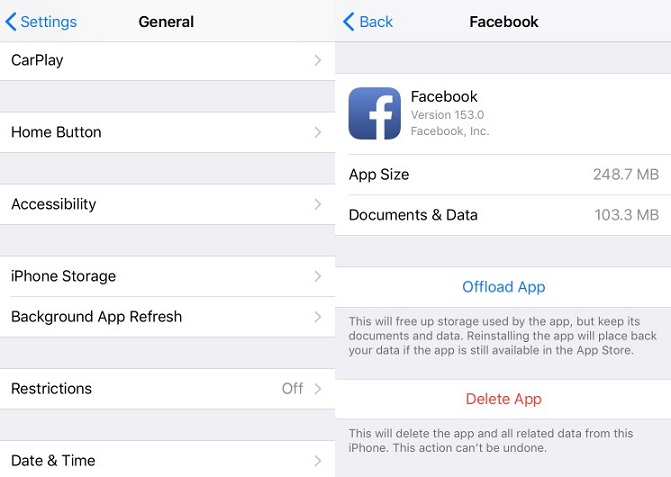
Are you too cool for shaking apps? I get it. Go to Settings. Yes, that gears icon that usually does nothing but break your Wi-Fi. Scroll down until you see General — no, wait, further. Past “Background App Refresh” (which is a lie), past “VPN & Device Management” (black magic). Find iPhone Storage.
This menu is a glorious revelation. It shows you every app, ranked by how much of your soul it has consumed. A game called “Fruit Ninja” from 2012 is somehow using 3GB. Why? That’s the surprising fact: leftover data from zombie apps bloats your phone. Tap the app, then tap “Delete App.” This method bypasses the jiggle dance and burns it directly from system memory. You’ll feel like a hacker.

