Okay, you’ve already made a selection with the Lasso Tool. It’s perfect except for that one jagged edge. Don’t panic. Right-click inside your selection and choose “Feather.”
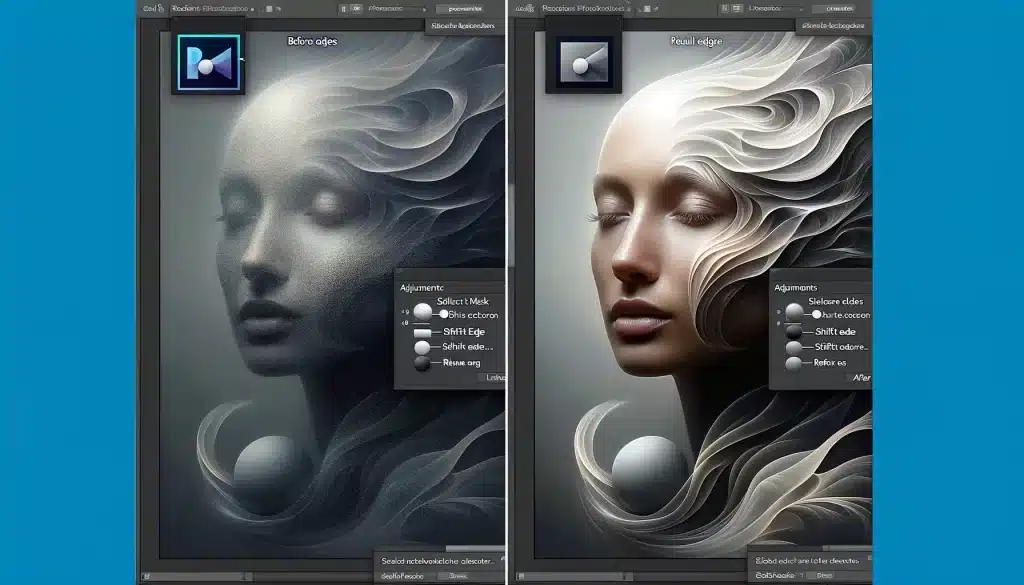 Feather Edges in Photoshop for Smooth Transitions
A tiny box pops up. Type in your pixel number. Click OK. It’s like applying a soft focus filter to just the edge. Magic.
Or, if you’re fancy, go to Select > Modify > Feather. Same result, just more clicks. You do you.
The Pro Tip: Feather on a Layer Mask
Here’s where the conversation gets serious. Stop cutting things out. Seriously. Use a Layer Mask instead. It’s non-destructive. You can change your mind a thousand times.
Paint black on the mask to hide, white to show. The edge is still sharp? Click on the mask thumbnail. Then go to Filter > Blur > Gaussian Blur. Blur the mask itself.
That’s right—you’re feathering the mask, not the image. It’s like teaching your layer to be chill. Your edges will look buttery smooth, and you can undo it whenever you want. Game changer.